
Searching Alerts
You can search for alerts using the search bar above the Alerts table. The search tool follows the Lucene syntax which supports a rich query language. For more information, see Apache Lucene - Query Parser Syntax.
To search on an item that is displayed in the Alerts table, simply click on the item and it will display in the Searches field.
You can also directly type in the Searches field to enter search criteria.
For example, you can enter
source:type:snort.To remove an item in the Searches field, mouse over the information in the Searches field until an x appears at the end of the text. Click on the x to remove the search filter and the operator following or preceding it.
To clear the entire Searches field, click the x at the end of the field.
You can specify the time range of your search by using the time range selector on the far right of the Searches field.

![[Note]](../common/images/admon/note.png)
Note The time-range selector is not available if you put a timestamp in the Searches field.
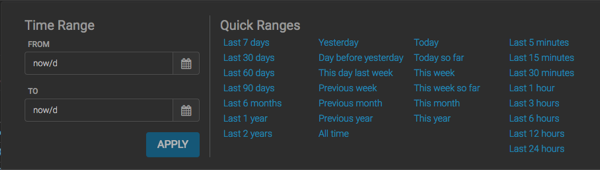
The time-range button defaults to All time which displays all alerts corresponding to the Searches parameters. To customize the time range, click the time-range drop-down menu and select one of the following:
- Time Range
Enables you to choose the start and end dates and times for your search.
- Quick Ranges
Provides a list of pre-specified time ranges that you can choose.
After you make your choice, the time-selector label will reflect your selection.